How to Manage Google Shopping Ads: A Complete Guide
- Flomaticx

- Jun 19, 2025
- 9 min read
In today’s competitive e-commerce landscape, knowing how to manage Google Shopping Ads can mean the difference between soaring sales and wasted ad spend. As a Shopify or WooCommerce store owner or an e-commerce manager exploring Google Shopping for the first time you need a clear roadmap. Proper management of Google Shopping Ads ensures your products reach highly motivated buyers, improves auction competitiveness, and maximizes your return on investment. Throughout this guide, you’ll learn how to manage Google Shopping Ads from initial setup through continuous optimization, so you can scale your campaigns efficiently.
Understanding Google Shopping Ads and Why Management Matters
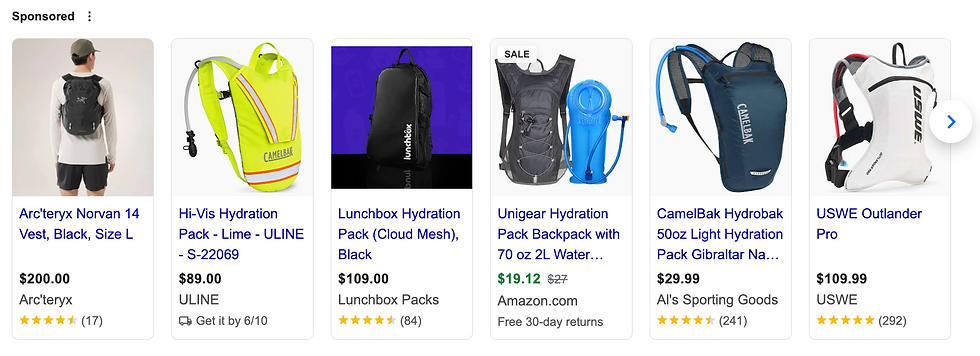
Google Shopping Ads display product images, titles, prices, and store names directly in search results. Unlike text-only search ads, Shopping Ads visually showcase products to shoppers who are actively comparing or looking to buy. Learning how to manage Google Shopping Ads involves several critical components:
Product feed health: A well-structured feed uploaded to Google Merchant Center is the foundation of any successful Shopping campaign.
Merchant Center compliance: Ensuring your Merchant Center account meets Google’s policies is vital to avoid suspensions.
Campaign structure: Properly segmented campaigns and ad groups help you bid strategically and gather actionable performance data.
Bidding and budgets: Strategic budget allocation and bidding strategies (like target ROAS) boost profitability.
Ongoing optimization: Regular feed audits, performance monitoring, and bid adjustments keep your ads competitive.
By mastering how to manage Google Shopping Ads, you’ll provide more relevant experiences to potential customers and protect your ad spend from inefficiencies.
Setting Up Your Google Merchant Center
Before you can run Shopping Ads, you need a Google Merchant Center account. This is where you upload and maintain your product data. Follow these steps to establish a compliant Merchant Center account:
Create a Google Merchant Center account using a business email associated with your domain.
Verify and claim your website URL so Google knows you own the domain. Use one of the recommended methods (HTML file upload, meta tag, Google Analytics, or Google Tag Manager).
Configure shipping and tax settings to match your e-commerce store’s policies. Accuracy here prevents disapprovals.
Link Google Merchant Center with your Google Ads account to enable Shopping campaign creation. Navigate to “Settings” > “Linked accounts” in Merchant Center and connect your Google Ads customer ID.
Review Merchant Center policies in the Google Merchant Center Help Center to avoid common compliance issues. Reference “merchant center help center” to troubleshoot product disapprovals or account suspensions.
Once your account is verified and linked, you can begin uploading a product feed.
Creating and Managing Your Product Feed
Your product feed is the backbone of Shopping Ads every attribute you provide influences when and where your ads appear. Here’s how to manage Google Shopping Ads through effective feed creation and maintenance:
Select a feed method: Use manual upload, scheduled fetch via FTP/SFTP, or Content API for automated updates. For Shopify or WooCommerce users, leverage built-in plugins (e.g., Google Channel for Shopify or WooCommerce Google Product Feed extensions).
Use required and recommended attributes: Include essential attributes like id, title, description, link, image_link, price, availability, and gtin or mpn. Add recommended attributes like brand, product_type, and custom_label_0 for enhanced segmentation.
Optimize product titles and descriptions: Incorporate high-impact keywords and key features, but avoid keyword stuffing. For example: “Organic Cotton Men’s T-Shirt – Soft, Lightweight Crew Neck.”
Maintain data quality: Regularly audit feed errors in Merchant Center (e.g., missing GTINs, invalid prices) and resolve disapprovals. Poor feed quality will severely limit how well you can manage Google Shopping Ads.
Use custom labels for segmentation: Leverage custom_label_0 through custom_label_4 to categorize products by seasonality, margin tier, or promotional status. This allows you to adjust bids for high-margin or seasonal products.
Schedule frequent feed updates: For stores with volatile inventory or pricing, update at least once daily. This ensures Shopping Ads reflect accurate stock and pricing, reducing disapprovals and invalid clicks.
Effectively managing Google Shopping Ads means consistent feed maintenance and optimization. A neglected feed leads to wasted spend and missed opportunities.
Structuring Your Google Shopping Campaigns
Campaign structure plays a major role in how well you can manage Google Shopping Ads. A poorly structured campaign makes bid management, budget allocation, and performance analysis more difficult. Follow these best practices:
Separate standard Shopping campaigns from Performance Max campaigns: If you’re using Performance Max, designate specific product groups to Performance Max and maintain a standard Shopping campaign for manual bidding and clearer reporting.
Create multiple campaigns by priority or budget tiers: Assign high-priority campaigns to best sellers or high-margin products. Use campaign priority settings (High, Medium, Low) to control which campaign is eligible for certain queries.
Break down ad groups into product groups: Rather than running one ad group with all products, subdivide by brand, category, or custom_label values. For example, group “men’s running shoes” separately from “women’s running shoes.” This granular structure lets you set more precise bids.
Set separate campaigns for seasonal or promotional products: This allows for dedicated budgets and sitelink extensions to highlight special deals.
Use custom labels to refine bidding strategy: If you used custom_label_0 to mark high-margin items, create a separate product group for those items and bid more aggressively.
By designing a strategic campaign structure, you retain control over how to manage Google Shopping Ads budget and bidding, making ongoing optimization more systematic.
Optimizing Your Product Feed for Better Performance
Even with the right campaign structure, your success hinges on feed optimization. Here’s how to manage Google Shopping Ads by refining your product feed:
Enhance titles with top-search keywords: Monitor Search Terms reports in Google Ads to discover which product keywords drive traffic. Update titles to include those keywords naturally.
Improve image quality and compliance: Use high-resolution images (at least 800 x 800 pixels) with a white or transparent background. Avoid promotional overlays.
Implement product schema markup on your site: While product schema doesn’t directly affect Shopping Ads, it can enhance organic performance and brand visibility.
Refine product categories and Google product categories: Ensure each product is assigned the most specific Google product category. This helps Google match search queries to your products more accurately.
Use supplemental feeds for data enrichment: If you have an existing primary feed, add a supplemental feed to update pricing or availability without altering other attributes.
Utilize feed rules in Merchant Center: Simplify common adjustments, such as concatenating brand and model into titles or setting inventory availability based on stock levels.
Maintaining a clean, optimized feed is a core piece of how to manage Google Shopping Ads. Consistent feed care directly affects ad eligibility and auction competitiveness.
Bidding and Budget Strategies for Google Shopping Management
Effective bid management is at the heart of managing Google Shopping Ads. Incorrect bids lead to lost clicks, excessive spend, or poor ROI. Here are strategies to help you manage Google Shopping Ads budgets and bids:
Start with manual CPC or enhanced CPC for new accounts: If your account has little historical data, begin with a conservative manual bid to gather performance insights. As data accrues, you can transition to automated bidding strategies.
Leverage Target ROAS bidding for mature accounts: Once you have significant conversion history, switch to Target ROAS. Set an initial ROAS target close to historical performance (e.g., 300 percent) and adjust over time.
Use bid adjustments by device, location, and audience: Analyze your performance by device, geography, and remarketing audiences. Increase bids on high-performing devices or regions. For instance, if mobile shoppers convert at higher ROAS, bid up for mobile.
Allocate budget based on campaign priority: Assign larger budgets to low-priority campaigns if they contain high-margin or fewer products, ensuring they don’t run out of daily budget prematurely.
Set negative keywords to prevent wasted spend: Regularly review Search Terms reports and add irrelevant or unprofitable queries as negative keywords. This sharpens how you manage Google Shopping Ads by preventing non-converting clicks.
Adjust bids for custom_label groups: If you segmented products into “high‐margin,” “clearance,” and “best‐seller,” bid higher on high-margin and best-seller groups, while reducing bids on clearance items.
By implementing these bidding tactics, you’ll learn how to manage Google Shopping Ads budgets more efficiently, driving higher ROAS and reducing wasted spend.
Monitoring and Analyzing Performance Metrics
Ongoing performance analysis is crucial when you manage Google Shopping Ads. Key areas to focus on include:
Impressions, clicks, and CTR: A low click-through rate may indicate poor product titles or imagery. Optimize feed attributes to improve relevance.
Cost-Per-Click (CPC) and Cost-Per-Acquisition (CPA): Track how much each click and conversion costs. If your CPA exceeds your target, revisit your bidding and product group segmentation.
Conversion rate and ROAS: Monitor conversion rates by product group, category, and device. If certain segments underperform, adjust bids or pause underperforming products.
Search term performance: Regularly review Search Terms to identify new keyword opportunities and negative keywords.
Impression share and lost impression share: High search impression share lost due to budget signals you need to increase daily budgets. Lost share due to rank suggests your bids are too low.
Day-of-week and hour-of-day trends: Identify peak shopping times and adjust ad schedules or bid multipliers accordingly.
Set up automated reporting either in Google Ads scripts or via Looker Studio so you receive daily or weekly updates. Consistent monitoring is one of the most important habits when you manage Google Shopping Ads over time.
Troubleshooting Common Issues in Google Shopping Management
Even experienced advertisers encounter hurdles when they manage Google Shopping Ads. Below are common problems and solutions:
Product disapprovals: Check Merchant Center diagnostics for disapproval reasons. Address issues like missing GTINs, policy violations, or image problems.
Account suspension: Ensure your policies (shipping, returns, taxes) are accurately reflected in Merchant Center. Review Google’s Seller Policies and fix any violations.
Feed processing errors: Use the Diagnostics page in Merchant Center to view feed errors. Correct syntax mistakes, invalid attributes, or mismatched currency codes.
Low-quality score on product feed: Improve product titles, descriptions, and images. Align feed data with search queries by adding relevant keywords.
Unrealistic ROAS goals: If Target ROAS campaigns aren’t delivering, lower your ROAS target or switch to Maximize Conversion Value until more data accumulates.
Budget constraints leading to limited impressions: If campaigns are limited by budget, either increase daily budgets or reallocate spend to higher-performing campaigns.
By proactively addressing these issues, you’ll become more adept at how to manage Google Shopping Ads and avoid common pitfalls.
Conclusion
Learning how to manage Google Shopping Ads is a continuous process of data analysis, feed optimization, campaign structuring, and strategic bidding. A well-maintained Merchant Center account, a polished product feed, and a granular campaign structure form the foundation. From there, smart bidding strategies, regular performance monitoring, and prompt troubleshooting ensure sustained growth. Whether you’re just starting or scaling a multi-thousand-dollar spend, mastering these steps will drive more qualified traffic and higher return on ad spend. Ready to take your Google Shopping performance to the next level? Contact us at Flomaticx – Your Google Ads Performance Partner!
Frequently Asked Questions
How do I set up Google Shopping?
To set up Google Shopping, create a Google Merchant Center account, verify and claim your website, configure shipping and tax settings, upload a product feed with required attributes, and link the Merchant Center to your Google Ads account. Then, create a Shopping campaign in Google Ads and assign a daily budget and bids.
What is Google Merchant Center?
Google Merchant Center is the platform where merchants upload and maintain their product data. It verifies that your product details such as titles, descriptions, images, prices, and availability comply with Google’s policies. Merchant Center also provides diagnostics to identify feed issues or policy violations.
How often should I update my product feed? Ideally, you should update your product feed at least once per day, especially if your inventory or pricing changes frequently. Some merchants update multiple times per day to ensure maximum data accuracy. Use scheduled fetch or Content API to automate this process.
What is a good target ROAS for Google Shopping? A good initial target ROAS depends on your historical performance. If your account’s average ROAS is 400 percent, start with a 350–400 percent target. After running for a few weeks, adjust based on actual performance. Keep in mind that a more aggressive target can limit impression share, while a conservative target may lower overall efficiency.
How can I improve my product feed quality? Improve feed quality by:
Including all required attributes (title, description, price, availability, GTIN, MPN).
Writing clear, keyword-rich titles that accurately describe the product.
Using high-resolution images with no promotional overlays.
Assigning precise Google product categories and product types.
Using custom labels for better segmentation.
Regularly reviewing feed diagnostics in Merchant Center and fixing errors.
How do I add negative keywords to Shopping campaigns? Navigate to your Shopping campaign in Google Ads, select “Keywords,” then “Negative keywords.” Add irrelevant terms such as “free,” “DIY,” or competitor brand names that attract clicks without conversions. Continually monitor Search Terms reports to identify additional negative keywords.
What is Google Shopping Feed Management?
Google Shopping feed management involves creating, optimizing, and maintaining the product data feed in Merchant Center. This includes ensuring data accuracy, enhancing titles and descriptions, assigning proper categories, and resolving feed errors to maximize ad eligibility and performance.
Why is my Google Shopping campaign limited by budget?
If your campaign’s daily budget is too low relative to search demand, you’ll see a “Limited by budget” notification. Solution: increase your daily budget or reallocate funds from lower-performing campaigns. Use impression share metrics to identify budget constraints and adjust accordingly.
How do I segment product groups in Google Shopping?
Within your Shopping campaign, go to the ad group and click “All products.” Use the “Subdivision” option to break out products by attribute (e.g., brand, product type, condition, or custom label). This allows you to apply distinct bids to each segment, improving bid precision.
What is Performance Max, and how does it affect Shopping campaigns?
Performance Max is a Google Ads campaign type that serves ads across all Google properties, using the same product feed as Shopping campaigns. It can drive additional reach but may cannibalize impressions from standard Shopping campaigns. If you use Performance Max, create separate product group segments to control budget allocation between Performance Max and standard Shopping.


